

To install your POP3 email on your iPhone you will need to have a few things:




 Step 11: Press “Save” and you’re good to go! Now you can check your email from the mail app on your phone! Hurray!
- A hosting account with LOJO
- An email set up (If your email is not set up, please contact us to set it up)
- A current password (If you’ve forgotten your password, give us a call!)
- To check if your current password works, click here and enter your email and password.
- An iPhone
This guide will help you install your POP3 email on an Apple iPhone:
Step 1:
Go to settings.
Step 2:
Click on the “Mail” tab
Step 3:
Click on “Accounts”
Step 4:
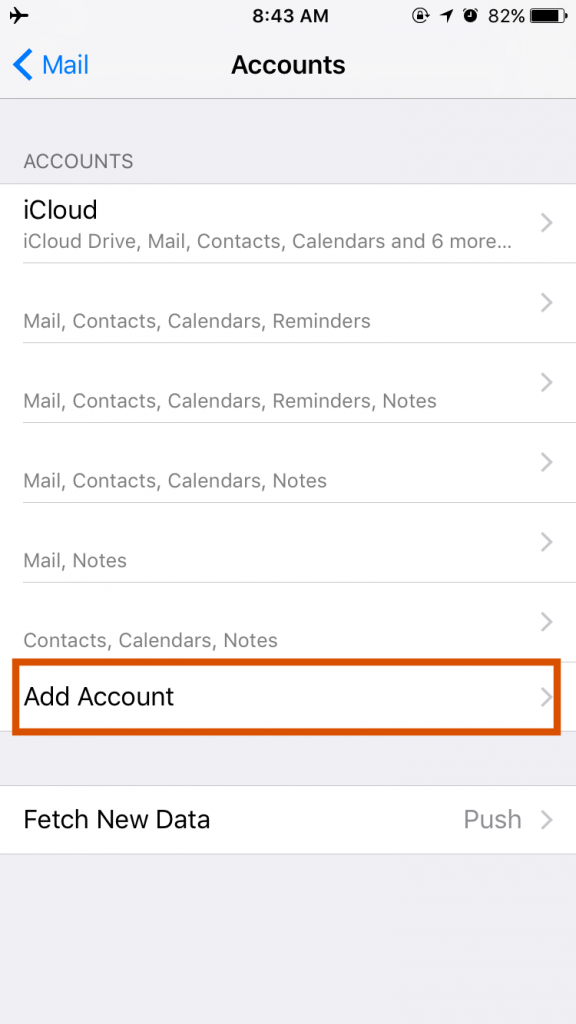
Click on “Add Account”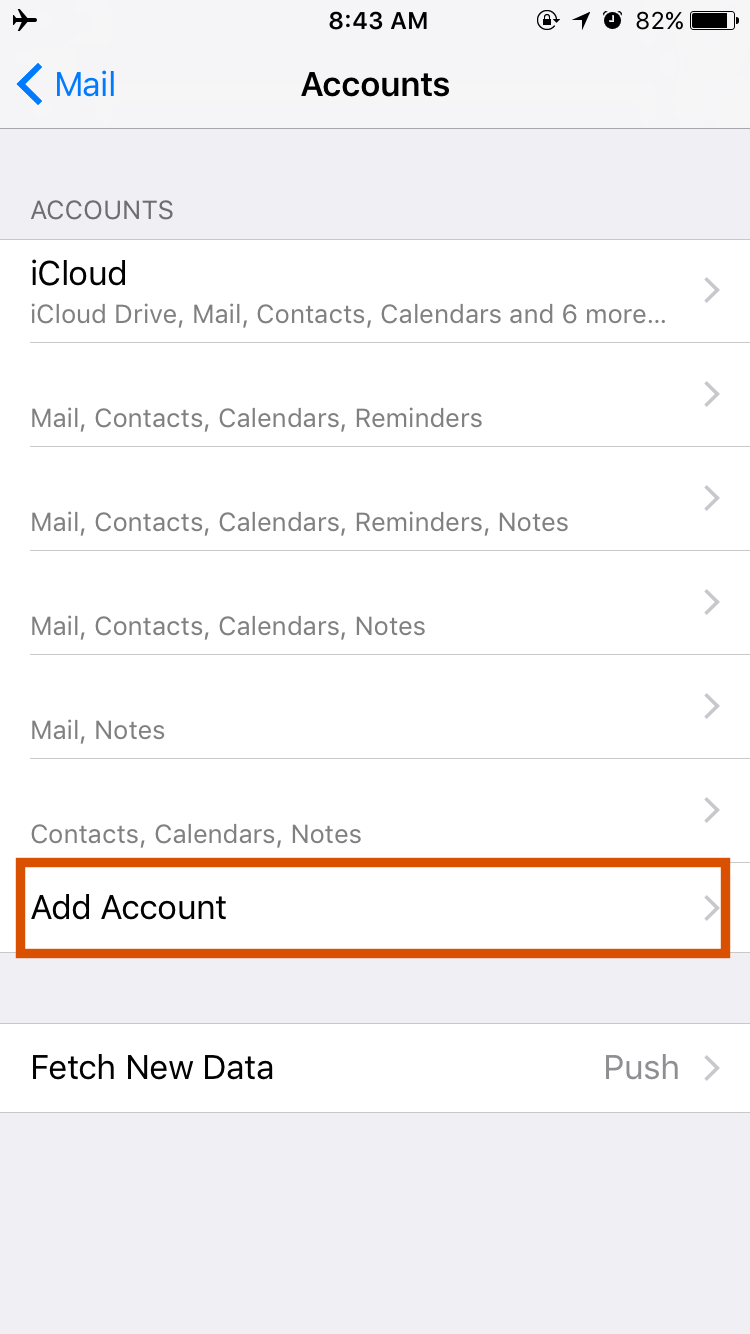
Step 5:
Choose the “Other” option.
Step 6:
Choose “Add Mail Account”
Step 7:
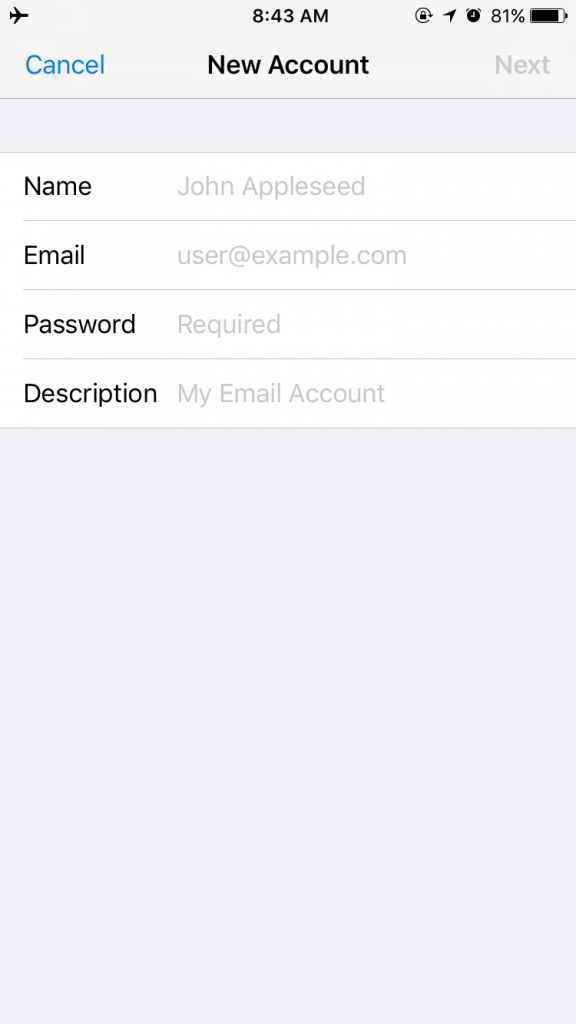
Once you have clicked on “Add Mail Account,” the “New Account” page will show up.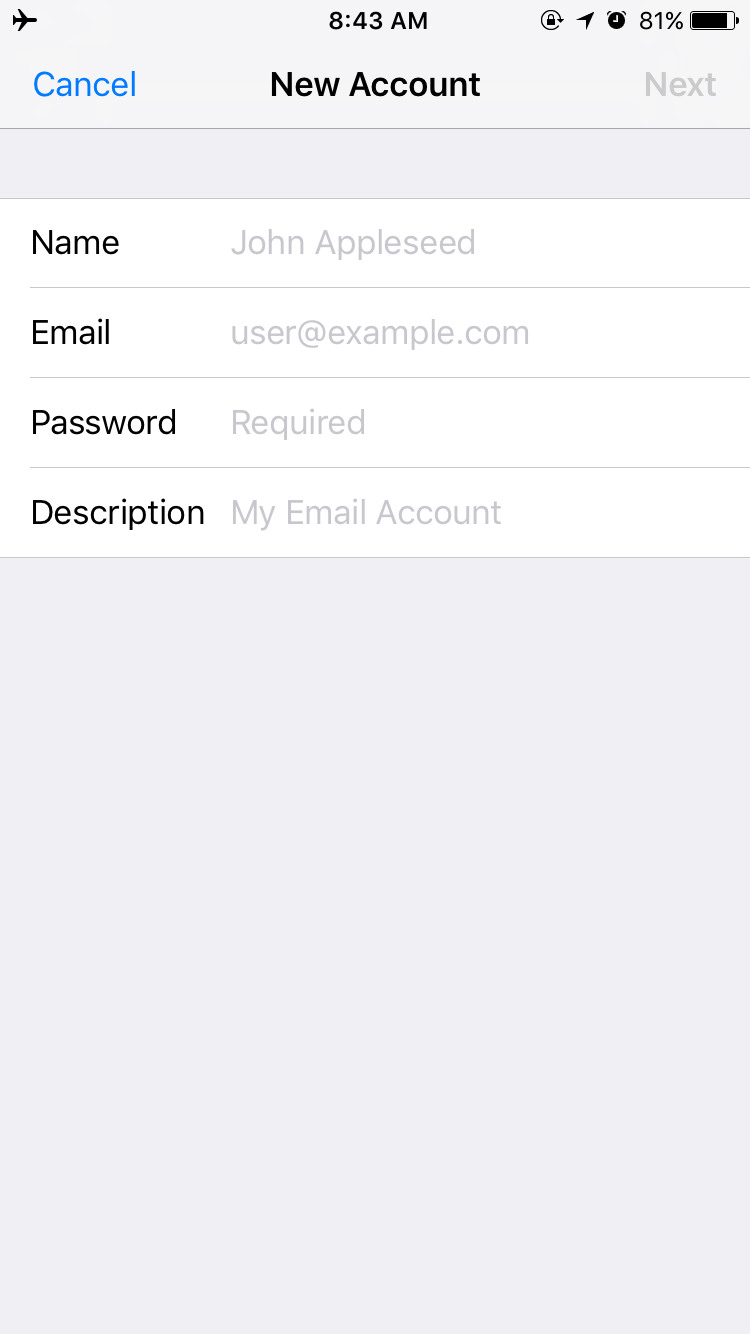
Step 8:
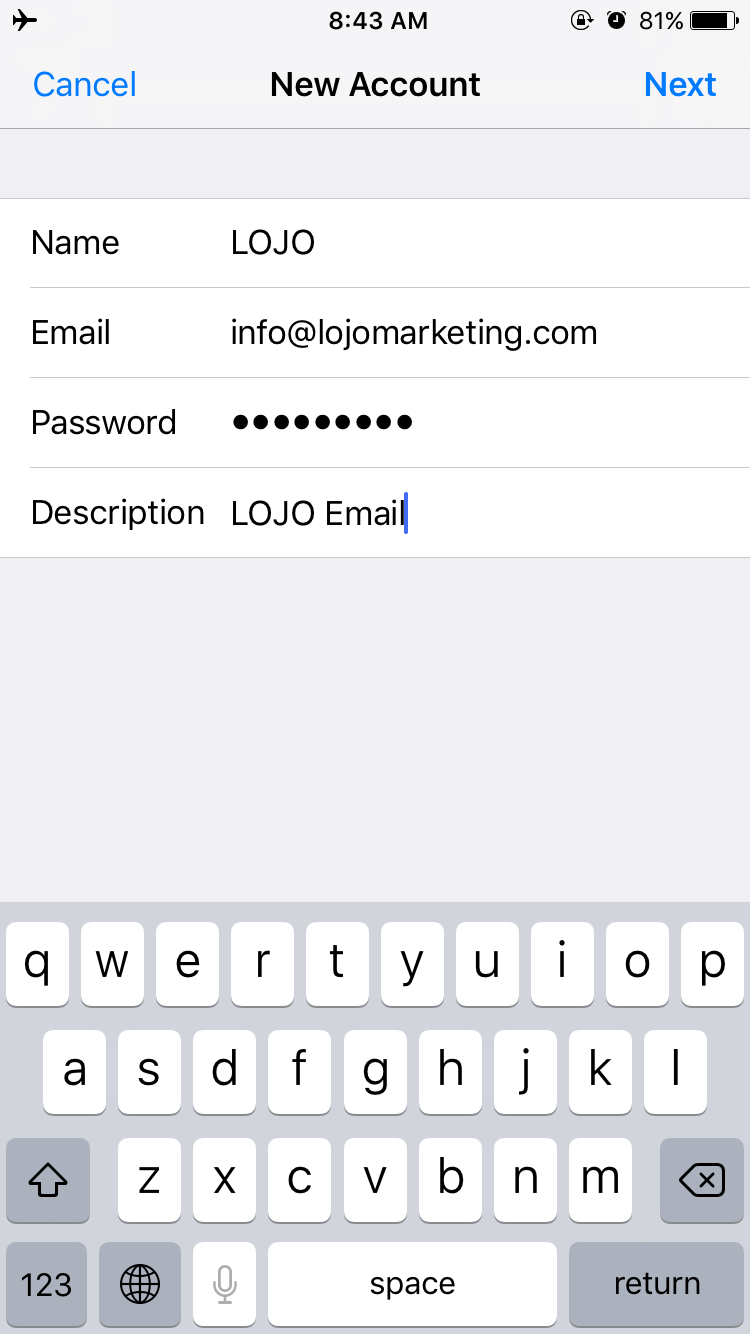
Add your: Name, Email, Password and Description. The description can be anything you want, I like to have it be “(My business) email.” ei. LOJO email. Click Next.
Step 9:
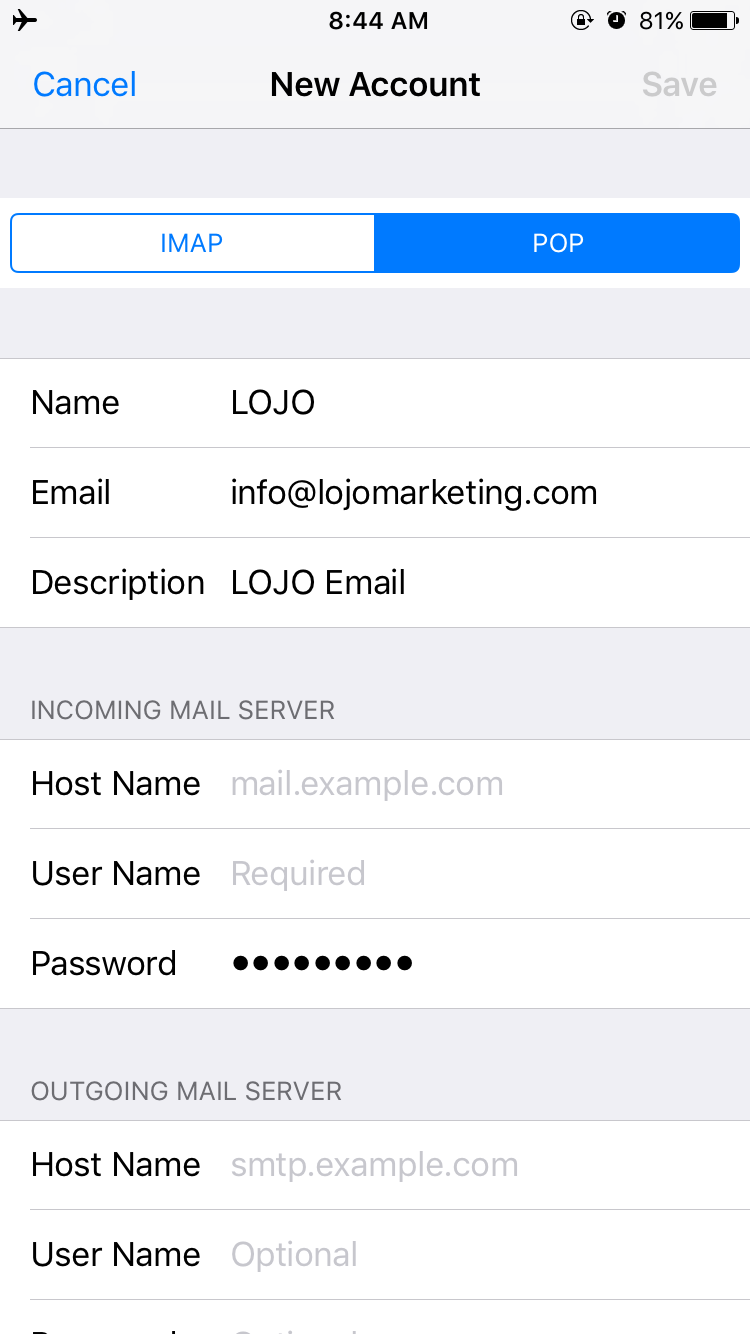
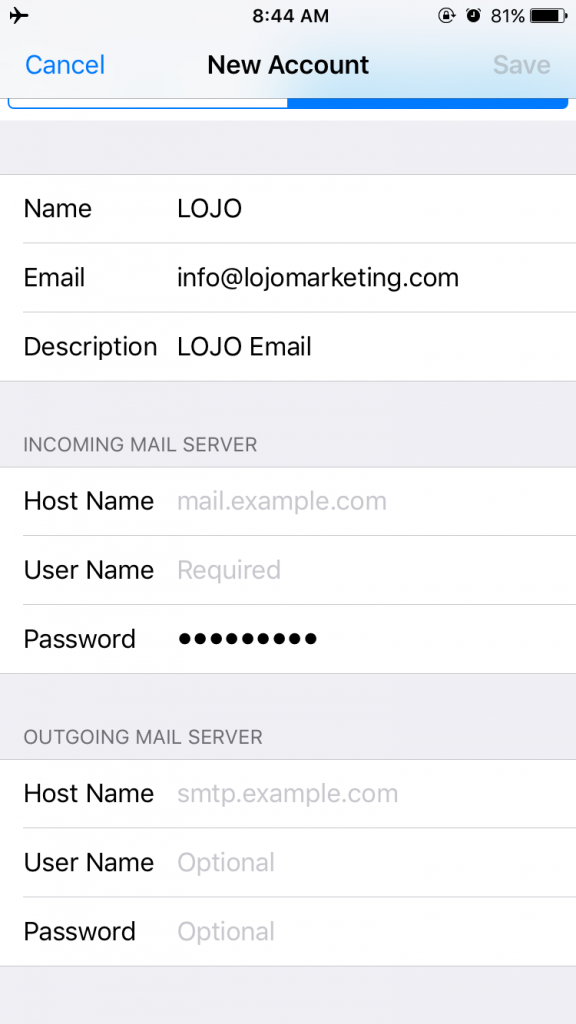
After you have clicked “Next” you will see the following page, make sure to click on “POP” at the top instead of “IMAP”:
Step 10:
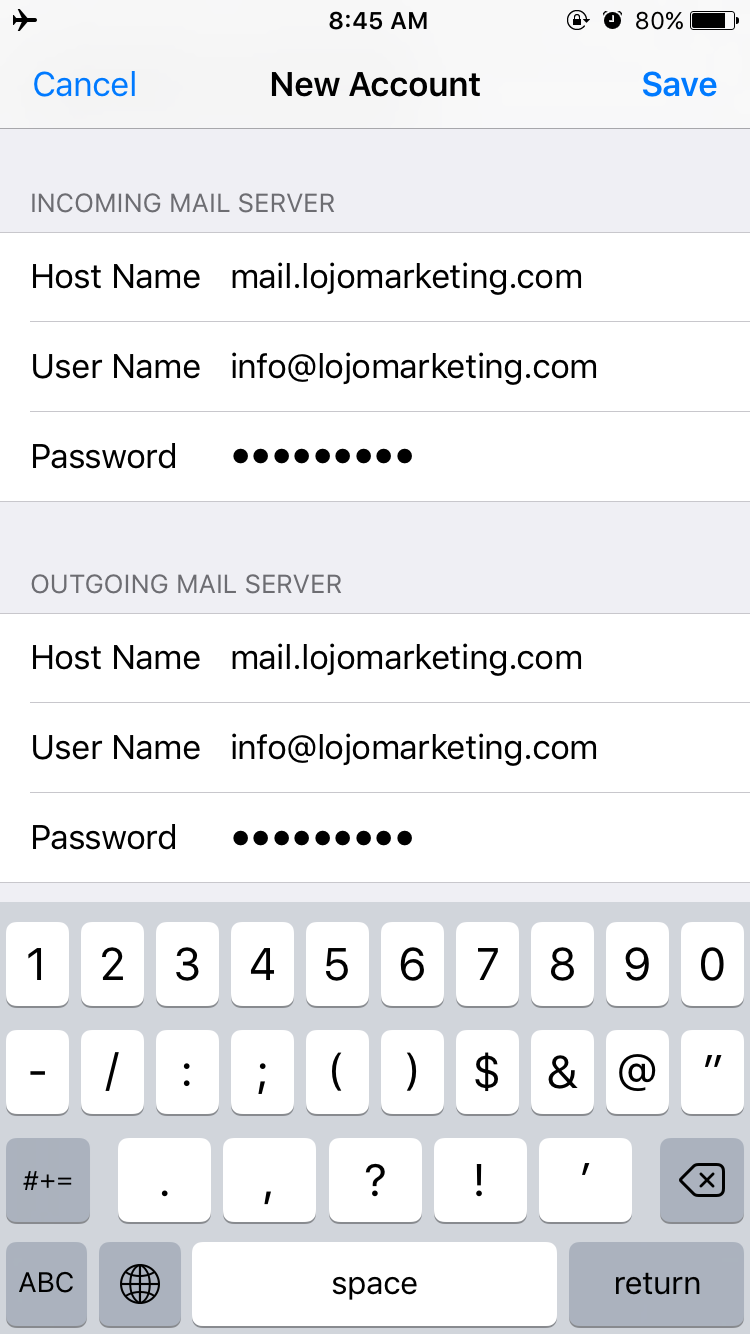
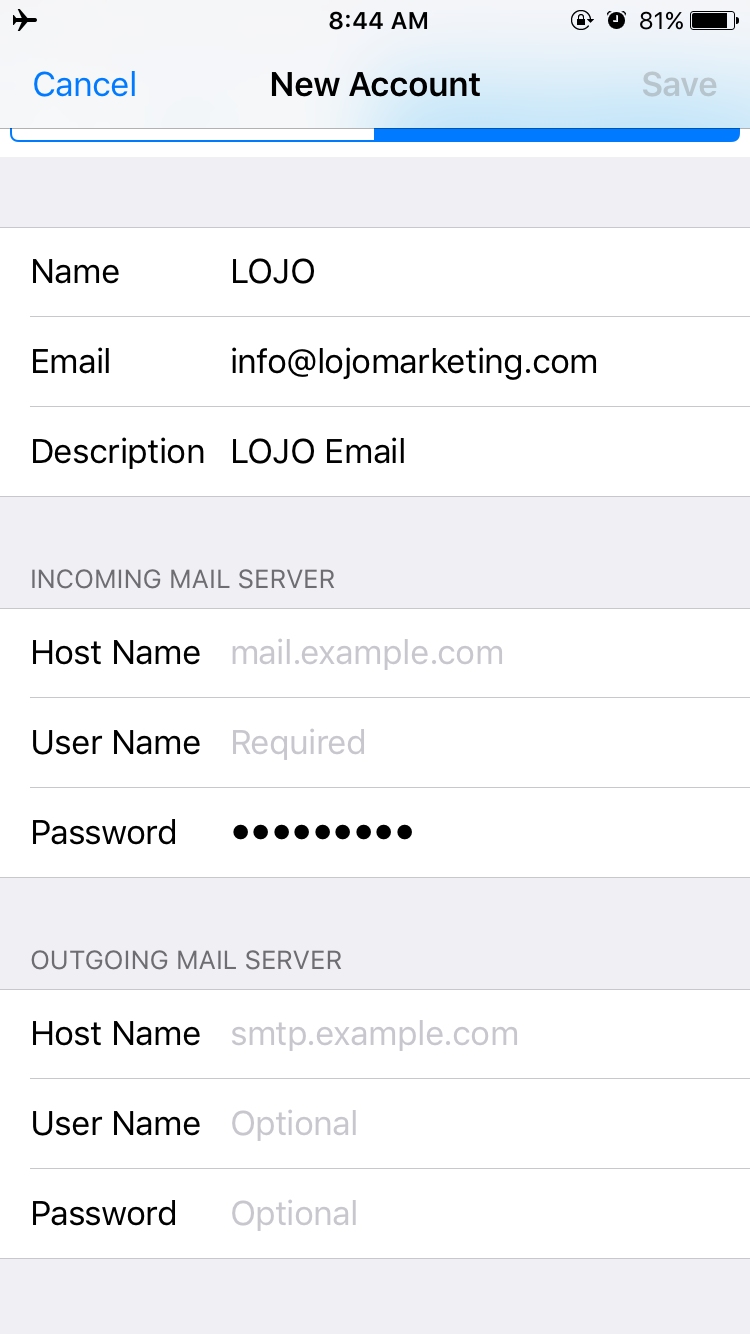
Scroll down a little bit on that page and start filling out the incoming and outgoing mail server information.- For all POP emails, your host name is going to be mail.yourdomain.com so in this case, our domain is LOJOmarketing.com, then our host name is mail.lojov9.lojoweb.com, if your domain is ilovedogs.net, then your hostname is mail.ilovedogs.net. Make sense?
- Now, I know that on some of these it says “Optional,” but it really isn’t. If you don’t fill that information out, you will have to go back and put it in eventually otherwise you won’t be able to send emails.
- Make sure to put your whole email where it says Username. So if my email is info@lojov9.lojoweb.com, my username is info@lojov9.lojoweb.com, not just info.
 Step 11: Press “Save” and you’re good to go! Now you can check your email from the mail app on your phone! Hurray!
_______________________________________________________________________________________
In the case that your email set up doesn’t go as smoothly and your phone asks you to go back into the settings and edit some of the settings, here are some things you should know:- The incoming mail port is always 110.
- The outgoing mail port can vary, but we recommend using 587. If 587 isn’t working, you can also use 25. Some Internet Service Providers block port 25 or other ports so we may need to work together to find a port that works for you.